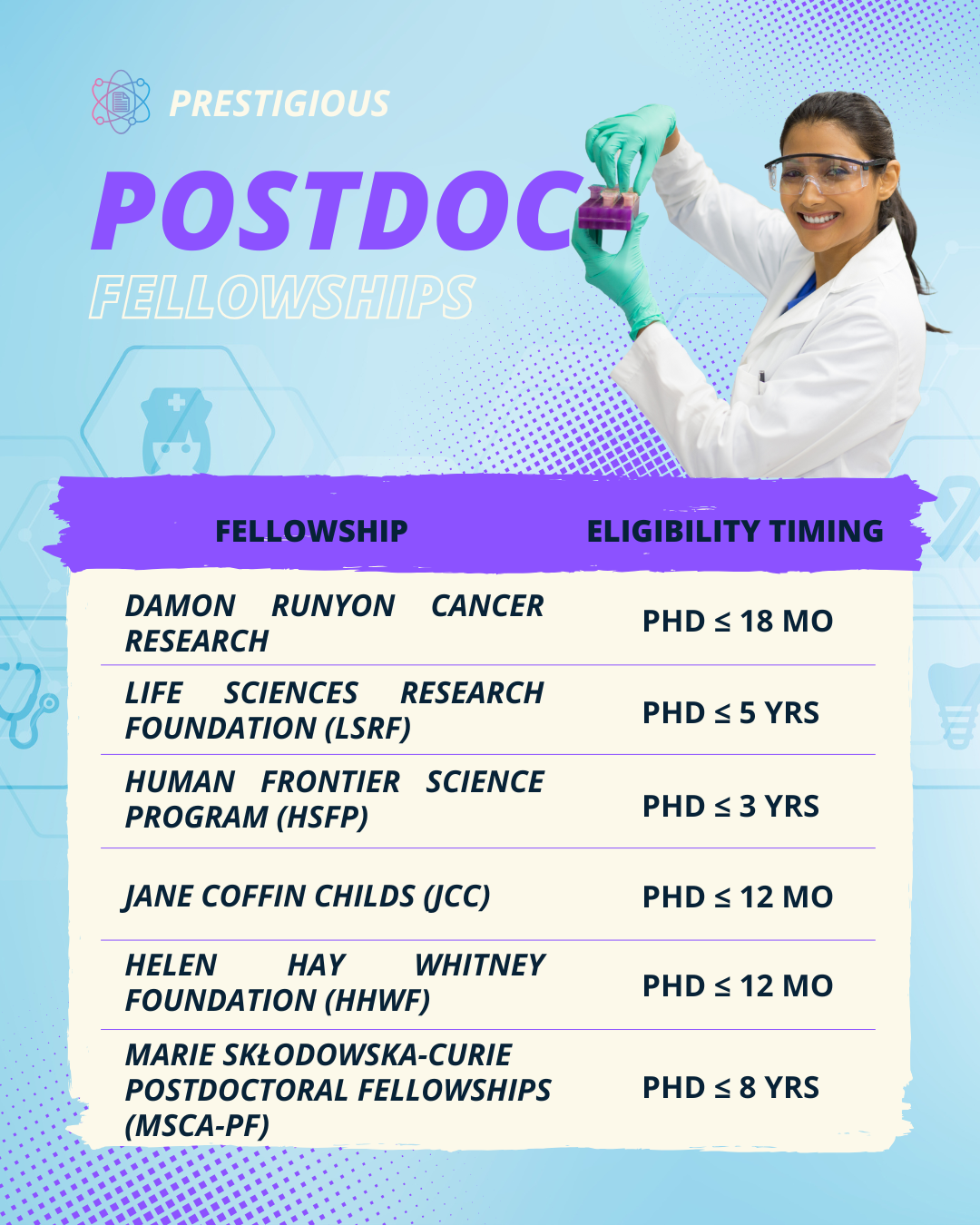
<?xml version="1.0" encoding="utf-8"?><feed xmlns="http://www.w3.org/2005/Atom" ><generator uri="https://jekyllrb.com/" version="3.10.0">Jekyll</generator><link href="https://sun647.github.io/feed.xml" rel="self" type="application/atom+xml" /><link href="https://sun647.github.io/" rel="alternate" type="text/html" /><updated>2026-01-02T06:25:29+00:00</updated><id>https://sun647.github.io/feed.xml</id><title type="html">Chen Sun</title><subtitle>personal description</subtitle><author><name>Chen Sun</name><email>csun@lji.org</email></author><entry><title type="html">Ctffind3</title><link href="https://sun647.github.io/CTFFIND3/" rel="alternate" type="text/html" title="Ctffind3" /><published>2026-01-01T00:00:00+00:00</published><updated>2026-01-01T00:00:00+00:00</updated><id>https://sun647.github.io/CTFFIND3</id><content type="html" xml:base="https://sun647.github.io/CTFFIND3/"><![CDATA[<h1 id="run-ctffind3-with-multiple-cpus">Run CTFFIND3 with Multiple CPUs</h1>

<div class="language-plaintext highlighter-rouge"><div class="highlight"><pre class="highlight"><code>#!/bin/bash
NCPUS=4        # threads per micrograph
JOBS=6         # micrographs in parallel
CTF=/data/csun/softwares/ctf/ctffind3_mp.exe

run_one () {
  mrc="$1"
  log="${mrc%.mrc}_ctffind3.log"

  [[ -f "$log" ]] &amp;&amp; { echo "Skipping $mrc"; return 0; }

  export NCPUS="$NCPUS"
  "$CTF" &lt;&lt; EOF &gt; "$log" 2&gt;&amp;1
$mrc
${mrc%.mrc}_ctf.mrc
2.7,300.0,0.1,28902,2.5
512,50,5,50000,5000,500,900
EOF
  echo "Done $mrc"
}

export -f run_one
export NCPUS CTF

parallel -j "$JOBS" run_one ::: *patch_aligned.mrc
</code></pre></div></div>]]></content><author><name>Chen Sun</name><email>csun@lji.org</email></author><summary type="html"><![CDATA[Run CTFFIND3 with Multiple CPUs]]></summary></entry><entry><title type="html">Prestigious Postdoc Fellowships</title><link href="https://sun647.github.io/posts/blog-post-27/" rel="alternate" type="text/html" title="Prestigious Postdoc Fellowships" /><published>2025-10-19T00:00:00+00:00</published><updated>2025-10-19T00:00:00+00:00</updated><id>https://sun647.github.io/posts/postdocfellowship</id><content type="html" xml:base="https://sun647.github.io/posts/blog-post-27/"><![CDATA[<p><img src="/images/posts/postdoc2.png" alt="" /></p>]]></content><author><name>Chen Sun</name><email>csun@lji.org</email></author><category term="PhD" /><category term="fellowship" /><category term="postdoc" /><summary type="html"><![CDATA[]]></summary></entry><entry><title type="html">Useful EMAN2 Commands</title><link href="https://sun647.github.io/posts/blog-post-23/" rel="alternate" type="text/html" title="Useful EMAN2 Commands" /><published>2025-07-30T00:00:00+00:00</published><updated>2025-07-30T00:00:00+00:00</updated><id>https://sun647.github.io/posts/EMAN2</id><content type="html" xml:base="https://sun647.github.io/posts/blog-post-23/"><![CDATA[<h2 id="1-check-movie-or-micrograph-information">1. Check Movie or Micrograph Information</h2>

<div class="language-bash highlighter-rouge"><div class="highlight"><pre class="highlight"><code>e2iminfo.py <span class="nt">-H</span> micrograph.mrc
</code></pre></div></div>

<h2 id="2-convert-mrc-to-tif">2. Convert MRC to TIF</h2>

<div class="language-bash highlighter-rouge"><div class="highlight"><pre class="highlight"><code>e2proc2d.py input.mrc output.tif
</code></pre></div></div>

<h2 id="3-convert-multiple-mrc-files-into-tifs">3. Convert Multiple MRC Files into TIFs</h2>

<div class="language-bash highlighter-rouge"><div class="highlight"><pre class="highlight"><code>e2proc2d.py <span class="k">*</span>mrc @tif
</code></pre></div></div>

<h2 id="4-scale-a-map">4. Scale a Map</h2>

<div class="language-bash highlighter-rouge"><div class="highlight"><pre class="highlight"><code>e2proc3d.py input.hdf output.hdf <span class="nt">--clip</span><span class="o">=</span>140,140,140 <span class="nt">--scale</span><span class="o">=</span>2.8
</code></pre></div></div>

<h2 id="5-generate-random-projections-of-a-map">5. Generate Random Projections of a Map</h2>

<div class="language-bash highlighter-rouge"><div class="highlight"><pre class="highlight"><code>e2project3d.py map.mrc <span class="nt">--outfile</span><span class="o">=</span>proj.mrcs <span class="nt">--orientgen</span> rand:n<span class="o">=</span>10:phitoo<span class="o">=</span>1:trans<span class="o">=</span>4
</code></pre></div></div>

<h2 id="6-low-pass-filter-a-map">6. Low-Pass Filter a Map</h2>

<div class="language-bash highlighter-rouge"><div class="highlight"><pre class="highlight"><code>e2proc3d.py input.mrc output.mrc <span class="nt">--process</span> filter.fourier:curres<span class="o">=</span>3.5:targetres<span class="o">=</span>7:dampamp<span class="o">=</span>1:randomizephase<span class="o">=</span>0
</code></pre></div></div>

<h2 id="7-sharpen-a-map">7. Sharpen a Map</h2>

<div class="language-bash highlighter-rouge"><div class="highlight"><pre class="highlight"><code>e2proc3d.py input.mrc output.mrc <span class="nt">--process</span> filter.autosharpening:cref<span class="o">=</span>1:mapres<span class="o">=</span>2.5:lpfile<span class="o">=</span>fsc.txt.fit
</code></pre></div></div>

<h2 id="8-calculate-structure-factor-curve-of-a-map">8. Calculate Structure Factor Curve of a Map</h2>

<div class="language-bash highlighter-rouge"><div class="highlight"><pre class="highlight"><code>e2proc3d.py input.mrc output.mrc <span class="nt">--calcsf</span> output_sf.txt
</code></pre></div></div>

<h2 id="9-match-structure-factor-curve-to-another-curve">9. Match Structure Factor Curve to Another Curve</h2>

<div class="language-bash highlighter-rouge"><div class="highlight"><pre class="highlight"><code>e2proc3d.py input.mrc output.mrc <span class="nt">--apix</span> 1.08 <span class="nt">--setsf</span> sf.txt
</code></pre></div></div>

<h2 id="10-match-filtering-level-of-another-map">10. Match Filtering Level of Another Map</h2>

<div class="language-bash highlighter-rouge"><div class="highlight"><pre class="highlight"><code>e2proc3d.py input.mrc output.mrc <span class="nt">--apix</span> 1.08 <span class="nt">--matchto</span> other.mrc
</code></pre></div></div>

<h2 id="11-generate-random-2d-projections-from-a-3d-map">11. Generate Random 2D Projections from a 3D Map</h2>

<div class="language-bash highlighter-rouge"><div class="highlight"><pre class="highlight"><code>e2project3d.py map.mrc <span class="nt">--outfile</span><span class="o">=</span>projections.mrcs <span class="nt">--orientgen</span> random:n<span class="o">=</span>1000:phitoo<span class="o">=</span>1:inc_mirror<span class="o">=</span>1:trans<span class="o">=</span>10
</code></pre></div></div>

<h2 id="12-rotate-a-map">12. Rotate a Map</h2>

<div class="language-bash highlighter-rouge"><div class="highlight"><pre class="highlight"><code>e2proc3d.py input.mrc output.mrc <span class="nt">--rot</span> az,alt,phi
e2proc3d.py input.mrc output.mrc <span class="nt">--rotspin</span> n1,n2,n3,angle
</code></pre></div></div>

<h2 id="13-rotate-octahedral-map-from-4-fold-view-to-3-fold-view">13. Rotate Octahedral Map from 4-Fold View to 3-Fold View</h2>

<div class="language-bash highlighter-rouge"><div class="highlight"><pre class="highlight"><code>e2proc3d.py input.mrc output.mrc <span class="nt">--oct4fto3f</span>
e2proc3d.py input.mrc output.mrc <span class="nt">--rot</span> 45,54.7356,0
</code></pre></div></div>

<h2 id="14-flip-handedness-of-a-3d-map">14. Flip Handedness of a 3D Map</h2>

<div class="language-bash highlighter-rouge"><div class="highlight"><pre class="highlight"><code>e2proc3d.py input.mrc output.mrc <span class="nt">--process</span> xform.flip:axis<span class="o">=</span>o
</code></pre></div></div>

<h2 id="15-y-flip-a-3d-reference">15. Y-Flip a 3D Reference</h2>

<div class="language-bash highlighter-rouge"><div class="highlight"><pre class="highlight"><code>e2proc3d.py input.mrc output.mrc <span class="nt">--process</span> xform.flip:axis<span class="o">=</span>y
</code></pre></div></div>

<h2 id="16-apply-mask-to-a-map">16. Apply Mask to a Map</h2>

<div class="language-bash highlighter-rouge"><div class="highlight"><pre class="highlight"><code>e2proc3d.py input.mrc output.mrc <span class="nt">--process</span> mask.file:file<span class="o">=</span>mask.mrc
</code></pre></div></div>

<h2 id="17-apply-cylindric-mask-to-a-map">17. Apply Cylindric Mask to a Map</h2>

<div class="language-bash highlighter-rouge"><div class="highlight"><pre class="highlight"><code>e2proc3d.py input.mrc output.mrc <span class="nt">--process</span> mask.cylinder3d:innerradius<span class="o">=</span>10A:outerradius<span class="o">=</span>20A:length<span class="o">=</span>60A:masksoft<span class="o">=</span>10A
</code></pre></div></div>

<h2 id="18-simulate-a-cylinder">18. Simulate a Cylinder</h2>

<div class="language-bash highlighter-rouge"><div class="highlight"><pre class="highlight"><code>e2proc3d.py :96:96:96:1 output.mrc <span class="nt">--apix</span> 1 <span class="nt">--process</span> mask.cylinder3d:innerradius<span class="o">=</span>10A:outerradius<span class="o">=</span>20A:length<span class="o">=</span>60A:masksoft<span class="o">=</span>10A
</code></pre></div></div>

<h2 id="19-simulate-a-spherical-mask-with-relion">19. Simulate a Spherical Mask with RELION</h2>

<div class="language-bash highlighter-rouge"><div class="highlight"><pre class="highlight"><code>relion_mask_create <span class="nt">--denovo</span> <span class="nt">--box_size</span> 256 <span class="nt">--inner_radius</span> 0 <span class="nt">--outer_radius</span> 50 <span class="nt">--angpix</span> 1.6 <span class="nt">--o</span> mask.mrc
</code></pre></div></div>

<h2 id="20-make-a-mask-based-on-threshold">20. Make a Mask Based on Threshold</h2>

<div class="language-bash highlighter-rouge"><div class="highlight"><pre class="highlight"><code>e2proc3d.py input.mrc output.mrc <span class="nt">--process</span> mask.auto3d:nshells<span class="o">=</span>5:nshellsgauss<span class="o">=</span>5:thresh<span class="o">=</span>3
</code></pre></div></div>

<h2 id="21-refine-and-apply-helical-symmetry">21. Refine and Apply Helical Symmetry</h2>

<div class="language-bash highlighter-rouge"><div class="highlight"><pre class="highlight"><code>e2proc3d.py input.mrc ouput.mrc <span class="nt">--process</span> xform.helical:apix<span class="o">=</span>1.1:az0<span class="o">=</span>22:z0<span class="o">=</span>37.2:cdsym<span class="o">=</span>c6:verbose<span class="o">=</span>1:rstep<span class="o">=</span>1
</code></pre></div></div>

<h2 id="22-apply-helical-symmetry-without-refinement">22. Apply Helical Symmetry Without Refinement</h2>

<div class="language-bash highlighter-rouge"><div class="highlight"><pre class="highlight"><code>e2proc3d.py input.mrc ouput.mrc <span class="nt">--process</span> xform.helical:apix<span class="o">=</span>1.1:az0<span class="o">=</span>22:z0<span class="o">=</span>37.2:cdsym<span class="o">=</span>c6:verbose<span class="o">=</span>1
</code></pre></div></div>]]></content><author><name>Chen Sun</name><email>csun@lji.org</email></author><category term="EMAN2" /><category term="commands" /><category term="processing" /><summary type="html"><![CDATA[1. Check Movie or Micrograph Information]]></summary></entry><entry><title type="html">FSC Error Bar Calculator</title><link href="https://sun647.github.io/posts/blog-post-25/" rel="alternate" type="text/html" title="FSC Error Bar Calculator" /><published>2025-07-30T00:00:00+00:00</published><updated>2025-07-30T00:00:00+00:00</updated><id>https://sun647.github.io/posts/FSCerrorbar</id><content type="html" xml:base="https://sun647.github.io/posts/blog-post-25/"><![CDATA[<h3 id="-about-this-fsc-confidence-estimation-web-app">🧊 About This FSC Confidence Estimation Web App</h3>

<p>Fourier Shell Correlation (FSC) is the standard method used in the cryo-electron microscopy (cryo-EM) field to estimate the resolution of reconstructed 3D maps, serving as a key indicator of overall map quality. FSC is computed as the cross-correlation coefficient between two independently reconstructed “half maps” as a function of spatial frequency. At each resolution shell, FSC quantifies how well the two maps agree, with higher values indicating better reproducibility and signal.</p>

<p>However, a single FSC value per shell assumes uniformity in signal quality across all voxels within that shell. In practice, this assumption oversimplifies the reality: <strong>voxel intensities vary substantially across different spatial locations</strong>, even within the same frequency band. This spatial heterogeneity can arise from anisotropic sampling, preferred particle orientations, or local disorder in the structure.</p>

<p>To better capture these local variations, this web application computes FSC not just as an average, but includes statistical confidence intervals around each FSC value. This web app allows you to <strong>visualize confidence intervals</strong> around the FSC values using <strong>three different statistical approaches</strong>. You can select your preferred method from the dropdown menu:</p>

<h4 id="1-fisher-z-transform-method-default">1. <strong>Fisher Z-Transform Method</strong> (Default)</h4>
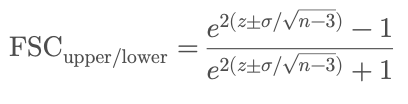
<p>This approach assumes the Fisher z-transformed FSC values follow a normal distribution, allowing us to compute analytical confidence bounds.
Formula:</p>

<p><img src="/images/posts/equation1.png" alt="equation1" /></p>

<p>Where:</p>

<p>z = 0.5 × log((1 + FSC) / (1 - FSC))
is the Fisher z-transform of the FSC<br />
n is the number of voxels in the resolution shell<br />
σ (sigma) is a user-defined z-score (e.g., 1.96 for 95% confidence, 3 for 99.7%)<br />
By allowing you to set the sigma value, this app gives you flexible control over the statistical stringency of the FSC envelope, helping you better interpret the reliability of FSC-based resolution estimates.</p>

<h4 id="2-bootstrap-method">2. <strong>Bootstrap Method</strong></h4>
<p>This non-parametric approach resamples voxel pairs within each shell to build a distribution of FSC values. Confidence bounds are calculated from percentiles of this distribution.</p>

<ul>
  <li>You can adjust the number of bootstrap samples.</li>
  <li>The bounds are based on the 2.5th and 97.5th percentiles by default (95% CI).</li>
</ul>

<h4 id="3-variance-based-method">3. <strong>Variance-Based Method</strong></h4>
<p>This method estimates FSC uncertainty analytically using a published variance formula that accounts for the number of voxels and the observed FSC value. Confidence bounds are derived as:</p>

<p><img src="/images/posts/equation2.png" alt="equation2" /></p>

<p>Where Var(FSC) is computed using:</p>

<p><img src="/images/posts/equation3.png" alt="equation3" /></p>

<div class="language-plaintext highlighter-rouge"><div class="highlight"><pre class="highlight"><code>frequency = shell_index / (box_size * apix)  # spatial frequency in 1/Å
resolution = 1 / frequency
</code></pre></div></div>
<hr />

<p><a href="https://fscerrorbar-bpamnw2rerqekapp5veeddq.streamlit.app/">Click me to try</a></p>

<p>Example FSC error bar for EMPIAR 10084 Cryo-EM structure of haemoglobin at 3.2 Å determined with the Volta phase plate   <br />
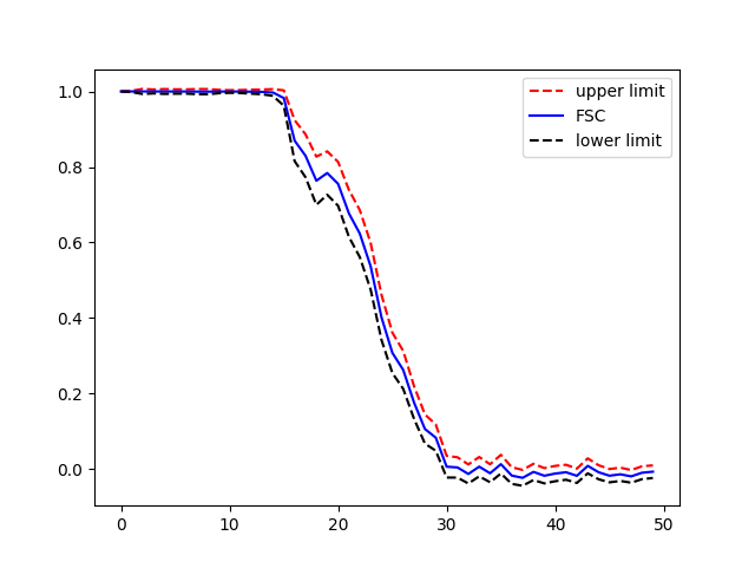
<img src="/images/posts/example.png" alt="example FSC error bar" /></p>

<h3 id="-references">📚 References</h3>

<ul>
  <li>
    <p>Penczek PA. <em>Resolution measures in molecular electron microscopy</em>. <strong>Methods Enzymol. 2010; 482:73–100</strong><br />
PMID: <a href="https://pubmed.ncbi.nlm.nih.gov/20888958">20888958</a> | PMCID: <a href="https://www.ncbi.nlm.nih.gov/pmc/articles/PMC3165049">PMC3165049</a></p>
  </li>
  <li>
    <p>Cardone G, Heymann JB, Steven AC. <em>One number does not fit all: mapping local variations in resolution in cryo-EM reconstructions</em>. <strong>J Struct Biol. 2013; 184(2):226–236</strong><br />
PMID: <a href="https://pubmed.ncbi.nlm.nih.gov/23954653">23954653</a> | PMCID: <a href="https://www.ncbi.nlm.nih.gov/pmc/articles/PMC3837392">PMC3837392</a></p>
  </li>
</ul>]]></content><author><name>Chen Sun</name><email>csun@lji.org</email></author><category term="FSC" /><category term="error bar" /><category term="confidence interval" /><summary type="html"><![CDATA[🧊 About This FSC Confidence Estimation Web App]]></summary></entry><entry><title type="html">STEM Outreach Programs</title><link href="https://sun647.github.io/posts/blog-post-19/" rel="alternate" type="text/html" title="STEM Outreach Programs" /><published>2025-07-24T00:00:00+00:00</published><updated>2025-07-24T00:00:00+00:00</updated><id>https://sun647.github.io/posts/outreach</id><content type="html" xml:base="https://sun647.github.io/posts/blog-post-19/"><![CDATA[<p><img src="/images/posts/outreach.png" alt="outreach" /></p>]]></content><author><name>Chen Sun</name><email>csun@lji.org</email></author><category term="graduate school" /><category term="outreach" /><category term="science communication" /><summary type="html"><![CDATA[]]></summary></entry><entry><title type="html">Centrifugation Types and Tips</title><link href="https://sun647.github.io/posts/blog-post-18/" rel="alternate" type="text/html" title="Centrifugation Types and Tips" /><published>2025-07-18T00:00:00+00:00</published><updated>2025-07-18T00:00:00+00:00</updated><id>https://sun647.github.io/posts/centrifugation</id><content type="html" xml:base="https://sun647.github.io/posts/blog-post-18/"><![CDATA[<p>There are two main types of centrifugation: <strong>differential centrifugation</strong> and <strong>density gradient centrifugation</strong>. Differential pelleting is commonly used to pellet cells, bacteria, and other large particles based on differences in <strong>mass, density and shape</strong>.</p>

<p>Density gradient centrifugation can be further divided into <strong>isopycnic centrifugation</strong> and <strong>rate-zonal centrifugation</strong>.</p>

<p>Isopycnic centrifugation separates particles only based on their <strong>buoyant density</strong>. It uses a continuous density gradient, which can be either preformed or self-forming (e.g., using CsCl or OptiPrep). In self-forming gradients, the sample is mixed with the gradient material, and the gradient forms during centrifugation. This process typically requires long run times—often overnight—to allow the gradient and particle separation to equilibrate.</p>

<p>Rate-zonal centrifugation separates particles based on their <strong>size and sedimentation rate</strong>. It often uses a stepwise gradient—a series of discrete layers with increasing density (e.g., 10%, 20%, 30%, 40%). The sample is layered on top of the lightest density layer. This method is widely used for virus purification and typically requires shorter centrifugation times (e.g., one to two hours). However, if spun too long, all particles may eventually pellet, reducing separation resolution.</p>

<p>Sometimes one has to run isopycnic and rate-zonal centrifugation in tandem to enhance purity.</p>

<h2 id="differential-centrifugation-or-pelleting">Differential centrifugation or pelleting</h2>

<ul>
  <li>Denser particles are pelleted faster than less dense particles</li>
  <li>Larger particles pellet faster than smaller ones</li>
  <li>Symmetrical particles pellet faster than asymmetrical ones</li>
  <li>Separation is not clean:
    <ul>
      <li>The g-force used to pellet large particles from the top will also pellet small particles from the bottom</li>
    </ul>
  </li>
</ul>

<hr />

<h2 id="desnsity-gradient-centrifugation">Desnsity gradient centrifugation</h2>

<h3 id="isopycnic-centrifugation-density-gradient-centrifugation-dcc">Isopycnic Centrifugation (Density Gradient Centrifugation, DCC)</h3>

<ul>
  <li>Separates by <strong>density</strong></li>
  <li>Can be carried out in <strong>all types of rotors</strong></li>
  <li>Requires <strong>longer run times</strong></li>
</ul>

<h4 id="preformed-gradient">Preformed Gradient</h4>

<ul>
  <li>Sample volume should be <strong>smaller</strong> than the gradient volume</li>
</ul>

<h4 id="self-forming-gradient">Self-Forming Gradient</h4>

<ul>
  <li>Sample is homogeneously mixed with a self-forming gradient (e.g., <strong>CsCl</strong> or <strong>OptiPrep</strong>)</li>
  <li>Uses solid gradient material or high-concentration gradient solution</li>
  <li>Centrifuge time is <strong>longer</strong> than with preformed gradients</li>
  <li><strong>Vertical or near-vertical rotors</strong> are preferred<br />
          - <strong>Swinging-bucket rotors</strong>, which have longer sedimentation paths, are rarely used for self-forming gradients</li>
</ul>

<h4 id="criteria-for-successful-isopycnic-separation">Criteria for Successful Isopycnic Separation</h4>

<ul>
  <li>Density of the sample particles must <strong>fall within the gradient range</strong></li>
  <li><strong>Any gradient length</strong> is acceptable</li>
  <li>Run time must be <strong>sufficient for particles to band at their isopycnic point</strong></li>
  <li>Excessive run time has <strong>no adverse effect</strong></li>
</ul>

<hr />

<h3 id="rate-zonal-centrifugation">Rate-Zonal Centrifugation</h3>

<ul>
  <li>Separates by <strong>sedimentation rates</strong></li>
  <li>Often used for <strong>viral purification</strong> or <strong>characterization</strong></li>
  <li>Initial sample volume should be <strong>small</strong></li>
  <li>If run <strong>too long</strong>, all particles will pellet at the bottom</li>
</ul>

<hr />

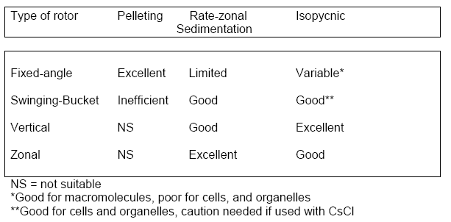
<h2 id="rotor-type">Rotor Type</h2>

<ul>
  <li><strong>Swinging bucket rotors</strong></li>
  <li><img src="/images/rotors.png" alt="rotor types" /></li>
</ul>

<blockquote>
  <h2 id="️-care-must-be-taken-to-avoid-point-loads-caused-by-spinning-cscl-or-other-dense-gradient-materials-that-can-precipitate">⚠️ Care must be taken to avoid “point loads” caused by spinning <strong>CsCl</strong> or other dense gradient materials that can precipitate.</h2>
</blockquote>

<h3 id="centrifugation-time-calculation">Centrifugation Time Calculation</h3>

<p>The centrifugation time is given by:</p>

\[t = \frac{k}{s'}\]

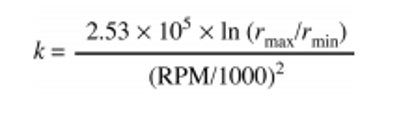
<p>The k factor is a measure of the pelleting efficiency of the rotor.</p>

<p><img src="/images/posts/kfactor.png" alt="kfactor" /></p>

<p>As the k factor decreases, rotor efficiency increases.</p>

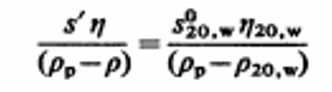
<p><img src="/images/posts/sedimentation.png" alt="sedimentation coefficient formula" />
Biochem. J. (1976) 159, 259-265</p>

<p>Where:</p>

<ul>
  <li><strong>t</strong> = Centrifugation time</li>
  <li><strong>k</strong> = Rotor k-factor (a measure of the pelleting efficiency of the rotor)
    <ul>
      <li>As the <strong>k-factor decreases</strong>, rotor efficiency <strong>increases</strong></li>
    </ul>
  </li>
  <li><strong>s’</strong> = Sedimentation coefficient of the particle in a particular gradient at 20°C (in Svedberg units, s)</li>
  <li><strong>ρp</strong> = Density of the particle (g/cm³)</li>
  <li><strong>ρ</strong> = Density of the gradient (g/cm³)</li>
  <li><strong>ρ₂₀,w</strong> = Density of water at 20°C (g/cm³)</li>
  <li><strong>S₂₀,w</strong> = Sedimentation coefficient of the particle in <strong>water at 20°C</strong> (Svedberg units, s)
    <ul>
      <li><em>1 Svedberg (S) = 10⁻¹³ seconds</em></li>
    </ul>
  </li>
</ul>

<hr />

<h3 id="example">Example</h3>

<p>At <strong>4°C in 20% sucrose</strong>, the sedimentation coefficient of <strong>Tulane virus</strong>:</p>

<ul>
  <li><strong>s’</strong> = 41.87 S</li>
  <li>Rotor: <strong>SW55 Ti</strong>, 45,000 rpm</li>
  <li><strong>k-factor</strong> = 72.4</li>
</ul>

<p>Calculation:
\(t = \frac{k}{s'} = \frac{72.4}{41.87} \approx 1.73\ \text{h} \approx 2\ \text{hours}\)
—</p>

<blockquote>
  <p><strong>Note</strong>: The sedimentation coefficient is influenced by the <strong>viscosity</strong> and <strong>density</strong> of the sucrose solution. Viscosity is dependent on both <strong>concentration</strong> and <strong>temperature</strong>.</p>
</blockquote>

<blockquote>
  <p>Check out the <a href="/files/Practical-Techniques-for-Centrifugal-Separations.pdf">Practical Techniques for Centrifugal Separations</a> for more details.</p>
</blockquote>]]></content><author><name>Chen Sun</name><email>csun@lji.org</email></author><category term="centrifugation" /><category term="purification" /><category term="sample" /><summary type="html"><![CDATA[There are two main types of centrifugation: differential centrifugation and density gradient centrifugation. Differential pelleting is commonly used to pellet cells, bacteria, and other large particles based on differences in mass, density and shape.]]></summary></entry><entry><title type="html">AreTomo3 installation issues</title><link href="https://sun647.github.io/posts/blog-post-12/" rel="alternate" type="text/html" title="AreTomo3 installation issues" /><published>2025-07-17T00:00:00+00:00</published><updated>2025-07-17T00:00:00+00:00</updated><id>https://sun647.github.io/posts/Aretomo</id><content type="html" xml:base="https://sun647.github.io/posts/blog-post-12/"><![CDATA[<h2 id="how-to-install-aretomo3">How to install <a href="https://github.com/czimaginginstitute/AreTomo3">AreTomo3</a>?</h2>
<p>The tutorial commands result in error messages.</p>

<div class="language-plaintext highlighter-rouge"><div class="highlight"><pre class="highlight"><code>git clone https://github.com/czimaginginstitute/AreTomo3.git
cd AreTomo3
make -f makefile11 CUDAHOME=/usr/local/cuda \
     CXXFLAGS="-I/usr/local/cuda/include" \
     LDFLAGS="-L/usr/local/cuda/lib64"
</code></pre></div></div>]]></content><author><name>Chen Sun</name><email>csun@lji.org</email></author><category term="AreTomo3" /><category term="installation" /><category term="tomo" /><summary type="html"><![CDATA[How to install AreTomo3? The tutorial commands result in error messages.]]></summary></entry><entry><title type="html">Leica Cryo-CLEM Imaging Protocol</title><link href="https://sun647.github.io/posts/blog-post-14/" rel="alternate" type="text/html" title="Leica Cryo-CLEM Imaging Protocol" /><published>2025-07-17T00:00:00+00:00</published><updated>2025-07-17T00:00:00+00:00</updated><id>https://sun647.github.io/posts/CLEM</id><content type="html" xml:base="https://sun647.github.io/posts/blog-post-14/"><![CDATA[<h2 id="1-pre-experiment-preparation">1. Pre-Experiment Preparation</h2>

<h3 id="a-transfer-shuttle-drying">a. Transfer Shuttle Drying</h3>
<ul>
  <li>Dry the <strong>Transfer Shuttle</strong> on the <strong>Leica Cryo Tool Dryer (CTD)</strong> for <strong>at least 20 minutes</strong> before use to reduce contamination.</li>
</ul>

<h3 id="b-cryo-stage-heating">b. Cryo Stage Heating</h3>
<ul>
  <li>Run <strong>stage heating</strong> for <strong>30 minutes at 60°C</strong>:
    <ul>
      <li><strong>Do not</strong> connect the LN₂ hose.</li>
      <li><strong>Lift the objective</strong> to the uppermost position (fully retracted).</li>
    </ul>
  </li>
</ul>

<hr />

<h2 id="2-power-on-sequence">2. Power On Sequence</h2>

<h3 id="a-microscope">a. Microscope</h3>
<ul>
  <li>Turn on the microscope, the control panel and the pump.</li>
  <li>Turn on the <strong>camera</strong>.</li>
</ul>

<h3 id="b-laser">b. Laser</h3>
<ul>
  <li><strong>Important</strong>: Turn on the <strong>front switch</strong> of the laser <strong>before</strong> the <strong>back switch</strong>.
    <ul>
      <li>Otherwise, the laser will not power on.</li>
    </ul>
  </li>
</ul>

<hr />

<h2 id="3-launch-imaging-software">3. Launch Imaging Software</h2>

<ul>
  <li>Start <strong>LAS X</strong> software.</li>
</ul>

<hr />

<h2 id="4-initialize-motorized-stage">4. Initialize Motorized Stage</h2>

<ul>
  <li>Click <strong>Initialize Stage</strong>.</li>
  <li>⚠️ Do <strong>not</strong> block the stage — allow it to move freely during initialization.</li>
</ul>

<hr />

<h2 id="5-select-imaging-mode">5. Select Imaging Mode</h2>

<ul>
  <li>Navigate to:<br />
<code class="language-plaintext highlighter-rouge">MatrixScreener → Matrix MAPS + CLEM</code></li>
</ul>

<hr />

<h2 id="6-fill-liquid-nitrogen-ln">6. Fill Liquid Nitrogen (LN₂)</h2>

<ul>
  <li>Fill <strong>LN₂ into the storage tank</strong>.</li>
  <li>⚠️ <strong>Do not</strong> fill all the way to the top:
    <ul>
      <li>LN₂ may <strong>spill</strong> when inserting the heat exchanger.</li>
    </ul>
  </li>
</ul>

<hr />

<h2 id="7-connect-cryo-hose-to-pump-and-stage">7. Connect Cryo Hose to Pump and Stage</h2>

<h3 id="a-start-the-pump">a. Start the Pump</h3>
<ul>
  <li>Press <strong>COOL</strong> to start.</li>
</ul>

<h3 id="b-wait-for-purge">b. Wait for Purge</h3>
<ul>
  <li>Wait until the <strong>hose is purging nitrogen gas</strong>.</li>
</ul>

<h3 id="c-connect-hose-to-cryo-stage">c. Connect Hose to Cryo Stage</h3>
<ul>
  <li>Insert the hose into the cryo stage.</li>
  <li><strong>Lock</strong> the hose in place:
    <ul>
      <li>Push the <strong>locking screw toward the hose</strong> while tightening.</li>
      <li>⚠️ If not pushed first, the hose may be pulled out easily and won’t seal properly.
        <ul>
          <li>Moisture may enter and condense, blocking the view.</li>
        </ul>
      </li>
    </ul>
  </li>
</ul>

<hr />

<h2 id="8-wait-for-stage-cool-down">8. Wait for Stage Cool Down</h2>

<ul>
  <li>When temperature reaches <strong>-195°C</strong>, <strong>wait another 15 minutes</strong> before loading the sample.</li>
</ul>

<hr />

<h2 id="9-cool-down-the-transfer-shuttle">9. Cool Down the Transfer Shuttle</h2>

<h3 id="a-setup">a. Setup</h3>
<ul>
  <li>Ensure the <strong>transfer shuttle shutter is closed</strong>.</li>
</ul>

<h3 id="b-insert-cartridge">b. Insert Cartridge</h3>
<ul>
  <li>Place an <strong>empty cartridge</strong> into the <strong>loading position</strong>.</li>
  <li>Close the <strong>slider</strong>.</li>
  <li>Turn the <strong>rod</strong> to the <strong>open-O</strong> position.</li>
  <li>Cover the cartridge with the <strong>shielding</strong>.</li>
</ul>

<h3 id="c-fill-ln">c. Fill LN₂</h3>
<ul>
  <li>Cover the transfer shuttle with its <strong>lid</strong>.</li>
  <li>Open the <strong>rotatable opening</strong>.</li>
  <li>Fill LN₂ inside the shuttle.
    <ul>
      <li>⚠️ <strong>Do not overfill</strong> — avoid pouring over the rod.</li>
      <li>Otherwise, the <strong>rod may freeze</strong> and become immobile.</li>
    </ul>
  </li>
  <li>The shuttle is <strong>fully cooled</strong> when the LN₂ <strong>stops boiling</strong> inside.</li>
</ul>

<hr />

<h2 id="10-load-autogrids-into-cartridge">10. Load AutoGrids into Cartridge</h2>

<ul>
  <li>Proceed with <strong>loading autogrids</strong> into the pre-cooled cartridge.</li>
</ul>

<hr />

<h2 id="11-load-grid-into-microscope">11. Load Grid into Microscope</h2>

<h3 id="a-ensure-lens-is-up">a. Ensure Lens Is Up</h3>
<ul>
  <li>⚠️ Objective lens must be lifted to <strong>avoid damage</strong> from the shuttle.</li>
</ul>

<h3 id="b-stage-access">b. Stage Access</h3>
<ul>
  <li>Open the <strong>stage slider</strong>.</li>
</ul>

<h3 id="c-insert-transfer-rod">c. Insert Transfer Rod</h3>
<ul>
  <li>Insert the <strong>transfer rod fully</strong>.</li>
  <li>Rotate to <strong>Open</strong> position to <strong>release the cartridge</strong>.
    <ul>
      <li>⚠️ Must insert <strong>all the way</strong> to the end.</li>
      <li>Otherwise, you <strong>won’t be able to focus</strong> on the grid.</li>
    </ul>
  </li>
</ul>

<h3 id="d-retract-rod">d. Retract Rod</h3>
<ul>
  <li>Pull the rod back.
    <ul>
      <li>The <strong>cartridge should remain</strong> in the stage.</li>
    </ul>
  </li>
</ul>

<h3 id="e-clean-up-shuttle">e. Clean Up Shuttle</h3>
<ul>
  <li>Remove the <strong>transfer shuttle</strong> from the stage.</li>
  <li>Pour out any <strong>remaining LN₂</strong>.</li>
  <li>Place it on the <strong>Cryo Tool Dryer (CTD)</strong> for baking out.</li>
</ul>

<hr />
<h2 id="12-imaging-procedure">12. Imaging Procedure</h2>

<h3 id="a-load-experiment">a. Load Experiment</h3>
<ul>
  <li>Open <strong>LAS X</strong> and <strong>load your experiment</strong>.</li>
</ul>

<h3 id="b-move-to-left-grid">b. Move to Left Grid</h3>
<ul>
  <li>In the MatrixScreener window:
    <ul>
      <li><strong>Right-click</strong> the <strong>left grid</strong>.</li>
      <li>Select <strong>“Move stage to left grid center”</strong>.</li>
    </ul>
  </li>
</ul>

<h3 id="c-autofocus">c. Autofocus</h3>
<ul>
  <li>Run <strong>Auto Focus</strong>.</li>
  <li>⚠️ If autofocus <strong>fails</strong>, adjust <strong>manually</strong> until sharp.</li>
</ul>

<h3 id="d-spiral-scan">d. Spiral Scan</h3>
<ul>
  <li>Run the <strong>Spiral Scan</strong> to locate good regions for imaging.</li>
</ul>

<h3 id="e-focus-map-setup">e. Focus Map Setup</h3>
<ul>
  <li>Select a <strong>circular imaging area</strong>.</li>
  <li>Click on several points <strong>within the circle</strong> to define a <strong>focus map</strong>.</li>
  <li>Click <strong>Start Focus Map</strong> to collect Z positions.</li>
</ul>

<h3 id="f-mosaic-scan">f. Mosaic Scan</h3>
<ul>
  <li>Enable <strong>4 channels</strong>.</li>
  <li>Adjust the <strong>Z-stack range</strong> according to your sample thickness.</li>
  <li>Click <strong>Run Matrix</strong> to begin automated imaging.</li>
</ul>

<h3 id="g-export-data">g. Export Data</h3>
<ul>
  <li>After acquisition is finished, <strong>export data files</strong> for downstream analysis.</li>
</ul>

<hr />
<h2 id="13-finishing-up">13. Finishing Up</h2>

<h3 id="a-close-software">a. Close Software</h3>
<ul>
  <li>Exit the <strong>LAS X</strong> software and any other imaging applications.</li>
</ul>

<h3 id="b-retrieve-grids">b. Retrieve Grids</h3>
<ul>
  <li><strong>Lift the objective lens</strong> to its uppermost position.</li>
  <li><strong>Retrieve the cryo grids</strong> from the stage.</li>
</ul>

<h3 id="c-heat-the-stage">c. Heat the Stage</h3>
<ul>
  <li>On the <strong>temperature control box</strong>, press <strong>“Heat”</strong>.</li>
  <li>Wait until the stage heats to <strong>60°C</strong>.</li>
</ul>

<blockquote>
  <p>⚠️ <strong>Do not</strong> remove the hose <strong>before</strong> the temperature reaches 60°C.<br />
Removing the hose prematurely can cause <strong>damage</strong> due to freezing.</p>
</blockquote>

<h3 id="d-disconnect-the-cryo-system">d. Disconnect the Cryo System</h3>
<ul>
  <li>Once the stage is at 60°C:
    <ul>
      <li><strong>Remove the LN₂ hose</strong>.</li>
      <li><strong>Remove the pump</strong> from the LN₂ tank.</li>
    </ul>
  </li>
</ul>

<h3 id="e-return-grid-boxes">e. Return Grid Boxes</h3>
<ul>
  <li>Place the <strong>used grid boxes</strong> back into the <strong>LN₂ storage tank</strong> for long-term storage.</li>
</ul>

<hr />]]></content><author><name>Chen Sun</name><email>csun@lji.org</email></author><category term="CLEM" /><category term="protocol" /><category term="Leica" /><summary type="html"><![CDATA[1. Pre-Experiment Preparation]]></summary></entry><entry><title type="html">Aquilos Cryo-FIB milling protocol</title><link href="https://sun647.github.io/posts/blog-post-13/" rel="alternate" type="text/html" title="Aquilos Cryo-FIB milling protocol" /><published>2025-07-17T00:00:00+00:00</published><updated>2025-07-17T00:00:00+00:00</updated><id>https://sun647.github.io/posts/aquilos</id><content type="html" xml:base="https://sun647.github.io/posts/blog-post-13/"><![CDATA[<h2 id="step-1-initial-setup">Step 1: Initial Setup</h2>
<ul>
  <li>Write down chamber pressure.</li>
  <li>Fill liquid nitrogen to the tank.</li>
  <li>Cool down the heat exchanger.</li>
  <li>Set N₂ gas flow rate to <strong>180 mg/s</strong>.</li>
</ul>

<h2 id="step-2-chamber-check">Step 2: Chamber Check</h2>
<ul>
  <li>Check if there is any sample in the chamber.</li>
</ul>

<h2 id="step-3-grid-loading">Step 3: Grid Loading</h2>
<ul>
  <li>Wait <strong>1 hour</strong> after cooling down, then load grids.</li>
</ul>

<h2 id="step-4-system-wake-up-and-beam-alignment">Step 4: System Wake-up and Beam Alignment</h2>
<ul>
  <li>Wake up the system.</li>
  <li>Turn <strong>Beam On</strong>.</li>
  <li>Perform <strong>180° scan rotation</strong> for both holders.</li>
  <li>After rotation, ensure the slot is positioned at the bottom of the grid.</li>
</ul>

<h2 id="step-5-grid-1-mapping-preparation">Step 5: Grid 1 Mapping Preparation</h2>
<ul>
  <li>Navigate to lowest magnification.</li>
  <li>Press <strong>F6</strong> to enable live view.</li>
  <li>Switch to higher magnification.</li>
  <li>Perform coarse focus.</li>
  <li>At <strong>2000x</strong>, do fine focus.</li>
  <li>Perform <strong>Sigma X and Y</strong> alignment.</li>
</ul>

<h2 id="step-6-z-height-calibration">Step 6: Z-Height Calibration</h2>
<ul>
  <li>In live mode, select <strong>Link Z to Forward</strong>.</li>
</ul>

<h2 id="step-7-project-setup-in-maps">Step 7: Project Setup in MAPS</h2>
<ul>
  <li>Open MAPS.</li>
  <li>Create a <strong>new project</strong>.</li>
  <li>Change save location to:<br />
<code class="language-plaintext highlighter-rouge">\\AS-SPC\SharedData\Chen\20241106</code></li>
</ul>

<h2 id="step-8-grid-1-pre-gis-mapping">Step 8: Grid 1 Pre-GIS Mapping</h2>
<ul>
  <li>Go to lowest magnification.</li>
  <li>Take a <strong>snapshot</strong>.</li>
  <li>Add <strong>tiles</strong>.</li>
  <li>Rename to <strong>“Grid1-preGIS”</strong>.</li>
  <li>Click <strong>Run</strong>.</li>
</ul>

<blockquote>
  <p>⚠️ Repeat Steps 5–8 for <strong>Grid 2</strong>.</p>
</blockquote>

<h2 id="step-9-cryo-clem-data-integration">Step 9: Cryo-CLEM Data Integration</h2>
<ul>
  <li>Import cryo-CLEM data.</li>
  <li>Align the data.</li>
  <li>Add lamella positions.</li>
</ul>

<h2 id="step-10-sputter-coating-preparation">Step 10: Sputter Coating Preparation</h2>
<ul>
  <li>Increase N₂ gas flow to <strong>210 mg/s</strong>.</li>
  <li>Perform <strong>Sputter coating</strong> using <strong>Setting 1</strong> for <strong>15 seconds</strong>.</li>
</ul>

<h2 id="step-11-gis-deposition-on-grid-1">Step 11: GIS Deposition on Grid 1</h2>
<ul>
  <li>Apply <strong>GIS</strong> to <strong>Grid 1</strong> for <strong>10 seconds</strong>.
    <blockquote>
      <p>⚠️ Do <strong>not</strong> exceed 10 seconds. A thick GIS layer will hinder milling efficiency.</p>
    </blockquote>
  </li>
</ul>

<h2 id="step-12-post-gis-coating">Step 12: Post-GIS Coating</h2>
<ul>
  <li>Perform <strong>Sputter coating</strong> again.</li>
  <li>Reset N₂ gas flow to <strong>180 mg/s</strong>.</li>
</ul>

<h2 id="step-13-high-resolution-imaging-grid-1">Step 13: High-Resolution Imaging (Grid 1)</h2>
<ul>
  <li>In <strong>XT-UI</strong>, take a high-resolution image.</li>
  <li>Save as: <code class="language-plaintext highlighter-rouge">Grid1_afterGIS-XXX.tif</code>.</li>
</ul>

<h2 id="step-14-autotem-setup">Step 14: AutoTEM Setup</h2>
<ul>
  <li>Open AutoTEM.</li>
  <li>Change <strong>project name</strong>.</li>
  <li>Do <strong>not</strong> change save location (keep as <code class="language-plaintext highlighter-rouge">D:\AuToTEM Cryo\Projects</code>).</li>
</ul>

<h2 id="step-15-intentionally-left-blank-for-future-use">Step 15: <em>(intentionally left blank for future use)</em></h2>

<h2 id="step-16-lamella-preparation">Step 16: Lamella Preparation</h2>
<ul>
  <li>Start lamella preparation.</li>
  <li>Manually adjust lamella placement.</li>
  <li>Proceed with <strong>milling and thinning</strong> step-wise.</li>
</ul>

<h2 id="step-17-manual-fine-polishing">Step 17: Manual Fine Polishing</h2>
<ol>
  <li>In AutoTEM, select the lamella → Right click → <strong>Go to lamella position</strong>.</li>
  <li>Increase tilt angle by <strong>+0.5°</strong> (e.g., T = 16.5 if stage = 16°).</li>
  <li>Create a <strong>rectangle milling pattern</strong>, set direction: <strong>top to bottom</strong>.</li>
  <li>Adjust brightness and contrast using a pattern at the side.</li>
  <li>Position milling pattern on top of the lamella.</li>
  <li>Start milling with <strong>30 pA</strong> ion beam.</li>
  <li>Use <strong>image shift Y</strong> to gently move the lamella into the milling pattern.</li>
  <li>Check lamella thickness with <strong>SEM view (2 kV)</strong>.
    <blockquote>
      <p>A thin lamella should appear <strong>black</strong> in SEM.</p>
    </blockquote>
  </li>
</ol>

<h2 id="step-18-documentation">Step 18: Documentation</h2>
<ul>
  <li>In <strong>MAPS</strong>:<br />
<code class="language-plaintext highlighter-rouge">File → Save screenshot as</code> → Save <strong>grid image with lamella positions</strong>.</li>
  <li>In <strong>XT-UI</strong>:
    <ul>
      <li>Take SEM and FIB images after focus adjustment.</li>
      <li>Use the <strong>finest photo</strong> button.</li>
      <li>Save images as:
        <ul>
          <li><code class="language-plaintext highlighter-rouge">L2_i.tif</code></li>
          <li><code class="language-plaintext highlighter-rouge">L2_s_2kV.tif</code></li>
          <li><code class="language-plaintext highlighter-rouge">L2_1200x_2kV.tif</code> (for LM correlation)</li>
        </ul>
      </li>
    </ul>
  </li>
  <li>Go to lowest magnification → Take full grid image with SEM.</li>
  <li>Copy entire <strong>data folder</strong> to the <strong>lab server</strong>.</li>
</ul>

<h2 id="step-19-shutdown-procedure">Step 19: Shutdown Procedure</h2>
<ul>
  <li>Put the system to <strong>Sleep</strong>.
    <blockquote>
      <p>⚠️ This is important to <strong>prevent ion beam waste</strong>.</p>
    </blockquote>
  </li>
  <li>Reset N₂ gas flow rate to <strong>12 mg/s</strong>.</li>
</ul>]]></content><author><name>Chen Sun</name><email>csun@lji.org</email></author><category term="Aquilos" /><category term="protocol" /><category term="FIB milling" /><summary type="html"><![CDATA[Step 1: Initial Setup Write down chamber pressure. Fill liquid nitrogen to the tank. Cool down the heat exchanger. Set N₂ gas flow rate to 180 mg/s.]]></summary></entry><entry><title type="html">How to Run Multiple MemBrain-Seg Jobs Simultaneously</title><link href="https://sun647.github.io/posts/blog-post-9/" rel="alternate" type="text/html" title="How to Run Multiple MemBrain-Seg Jobs Simultaneously" /><published>2025-07-16T00:00:00+00:00</published><updated>2025-07-16T00:00:00+00:00</updated><id>https://sun647.github.io/posts/membrain</id><content type="html" xml:base="https://sun647.github.io/posts/blog-post-9/"><![CDATA[<h2 id="step-1-install-membrain-seg">Step 1: Install <a href="https://github.com/teamtomo/membrain-seg?tab=readme-ov-file">MemBrain-Seg</a></h2>

<p>Clone the GitHub repository and follow the instructions in the README to install dependencies and set up the Python environment:</p>

<h2 id="step-2-select-a-specific-gpu">Step 2: Select a Specific GPU</h2>

<p>To specify which GPU to use, prepend your MemBrain command with the CUDA_VISIBLE_DEVICES environment variable. This variable tells PyTorch which GPU(s) are visible to the program. You can run multiple MemBrain commands in parallel on different GPUs to process several tomograms simultaneously.</p>

<div class="language-plaintext highlighter-rouge"><div class="highlight"><pre class="highlight"><code>CUDA_VISIBLE_DEVICES=1 membrain segment --tomogram-path lamella4_ts_001_full_rec.mrc --ckpt-path /home/csun/Membrain-model/MemBrain_seg_v10_alpha.ckpt --store-connected-components
</code></pre></div></div>]]></content><author><name>Chen Sun</name><email>csun@lji.org</email></author><category term="segmentation" /><category term="cryo-ET" /><category term="GPU" /><summary type="html"><![CDATA[Step 1: Install MemBrain-Seg]]></summary></entry></feed>